


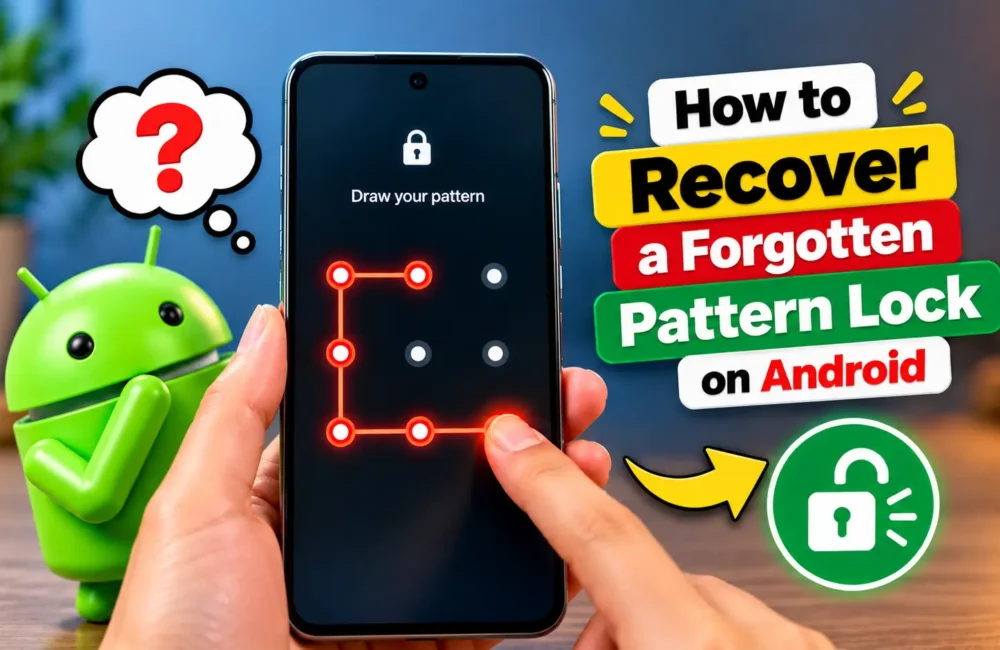
Forgetting your Android phone’s pattern lock can be frustrating. It can prevent you from accessing your photos, contacts, apps, and important files. Fortunately, there are several ways to regain access to your device.
In this guide, we’ll explain the safest methods to recover a forgotten pattern lock on Android phones.
Why You Can’t Simply Bypass a Pattern Lock
Android devices use security features to protect your personal data. If you forget your pattern lock, Android does not provide a simple “show pattern” option because that would make the security system useless.
The available recovery methods depend on your Android version, device brand, and whether you have access to your Google account.
Method 1: Use Your Google Account
Many Android phones are linked to a Google account. If you remember the account credentials, recovering access may be easier.
Steps:
- Enter the wrong pattern several times.
- Look for options such as Forgot Pattern, Forgot Password, or Use Google Account.
- Tap the option if it appears.
- Sign in using the Google account connected to the device.
- Follow the instructions to create a new screen lock.
Keep in mind that newer Android versions may not display this option.
Method 2: Use Google’s Find My Device
If your phone is connected to the internet and linked to a Google account, you can use Google’s Find My Device service.
What You Need
- The Google account connected to the phone
- Internet access on the locked device
- Another phone, tablet, or computer
Steps
- Open Google’s Find My Device website.
- Sign in with the same Google account used on the locked phone.
- Select your device from the list.
- If available, choose the option to erase the device.
- Follow the on-screen instructions.
After the reset is complete, you can set up the phone again and create a new pattern lock.
Method 3: Use the Device Manufacturer’s Recovery Features
Some Android brands provide their own account systems and recovery options.
Examples include:
- Samsung Account for Samsung devices
- Xiaomi Account for Xiaomi phones
- Other manufacturer-specific cloud services
Visit the official support website of your phone manufacturer to check whether remote recovery options are available for your model.
Method 4: Factory Reset the Device
If no recovery option works, a factory reset may be necessary.
Important Warning: A factory reset usually removes apps, settings, and files stored on the device. If your data is not backed up, it may be lost.
Steps
- Turn off the phone.
- Press the recovery mode button combination for your device. This often involves holding the Power button and Volume Up button together.
- When Recovery Mode appears, use the volume buttons to navigate.
- Select Wipe Data/Factory Reset.
- Confirm the action.
- Wait for the process to finish.
- Restart the device.
After resetting, you’ll need to sign in with the Google account previously used on the phone due to Android’s Factory Reset Protection (FRP) feature.
How to Avoid Forgetting Your Pattern Lock Again
Getting locked out of your phone is stressful. Here are some tips to prevent it from happening again:
1) Use a Memorable Pattern
Choose a pattern that is easy for you to remember but difficult for others to guess.
2) Enable Fingerprint or Face Unlock
Biometric authentication can provide a convenient backup when you don’t want to enter your pattern repeatedly.
3) Keep Your Google Account Updated
Make sure you know your Google account email address and password. Recovery is much easier when your account information is available.
4) Back Up Important Data
Regular backups help protect your photos, contacts, and documents if you ever need to reset your device.
Final Thoughts
Forgetting your Android pattern lock can be annoying, but it doesn’t mean your phone is permanently inaccessible. Start by trying your Google account or your phone manufacturer’s recovery options. If those methods are unavailable, a factory reset can help you regain access to the device.
To avoid future problems, keep your account information updated, enable backup security options, and regularly back up your important data.



Leave a Reply